Showing posts with label access. Show all posts

Wednesday, 5 November 2014

Mathscribe- Assistive technology for print disabled users?


Price: free! (no ads- $1.29)
iTunes link


Today i downloaded and assessed Mathscribe for the needs of low vision and print disabled users as a math notation program.

Mathscribe is a very sophisticated unicode math annotator for the ipad. It contains greek and hindu-arabic symbols as well as algebraic and trigonometric characters.  You can export the results into a rich text format- that means you can paste it into emails, word documents- anything you like which makes it a promising app for users who find notation with pen and paper difficult or want an easy to way to export math across digital sources that is cohesive and understood on multiple other systems and devices and of course- printers!

Math is not my forte but it looks like every character i can imagine is available in the keyboards various submenus.

Accessibility Limitations 

In regards to accessibility however, this application falls over in a few areas at this stage.

* You CAN adjust the font of the script to a ridiculously large size (N100)- but not the character buttons- and the font on the calculator is necessarily small due to all the functions made available. So it's not really great if you can't get a good look at N18 and this is not the sort of app you'll want to use the built in zoom for.

Like any keyboards though, if you love it you'll memorise it and then at least your working area can be enlarged so you don't have to use the zoom. But this makes for a steep learning curve- one thing that helps in this regard as that Algebraic and Trigonemetric keypads change the colour of their borders when selected- but not the keys- a missed opportunity there i feel.

Speech to Text
The math notation you create is unicode and can be voiced through speech or voiceover- but it won't voice things such as super or subscripts and only voices the unicode as it appears without making any inferences- so the math in my screenshot here reads as "Seventy Four therefore Fourty Seven"and pythagoras' theoreum is voiced as "a two equals b two plus c two".

This is the common failing point of text-to-speech engines reading math.


Voiceover compatibility
On ios 8.1 with voiceover on- this thing crashes all the time. When it doesn't crash there are serious navigation issues on the keyboard- the keyboard and dynamic keypad are the SAME element- so voiceover reads across the entire top row including the keypad in its scan. These really need to be navigated as separate elements to be accessible or useable.

This large keyboard is read by voiceover horizontally across the keyboard and keypad which makes it difficult to navigate.

Digital Braille

Sadly i don't at this stage have access to a digital braille display to test how this works in UEB but i suspect the issues with speech and voiceover carry over to digital braille.

Speech to text
No Speech-to-text or Siri compatibility is a missed opportunity in my opinion, but this is more an issue that Apple hasn't made Siri compatible with math notation then the fault of this noble free app.


Verdict 

There are some strong points as well for mathscribe in it's notation abilities for students with print disabilities that aren't vision related. It notates the math you type without solving it for you, which could be a selling point over soulver for high level notation and pedagogical purposes for teachers.  The contrasting colours of the keypad help to separate the functions on the keyboard visually. But all in all this clever app needs a bit of work before it can be effective assistive technology for users with print disabilities and i prefer the UI of Soulver personally.


Friday, 31 October 2014

Assistive Technology Teaching Program for a Dyslexic student- The Fantasy Novel.

I want to share a program I developed for a particular student which i think would be useful for other teachers and parents of students with dyslexia.

When i met this student he was eleven years old and was well spoken and intelligent, despite this he was reading at a level a few years below and this was consistent in his schooling. He had a diagnoses of dyslexia so i was able to get a few sessions from my employer to work a program with him last year.

This student had very little experience with technology and a love of the fantasy genre. I developed this program to teach him literacy support AT skills like speech-to-text, text-to-speech- but also to tap into his loves. This program culminates in my student using speech to text and word prediction to create an electronic fantasy book which is completely accessible and electronic and able to be read by his peers and other children with print disabilities.  The student also used the Lord of the Rings MMORPG computer game to research fantasy concepts and enjoy reading in a gaming context.

This program contains the software and hardware as well as all the steps of each session to build competence and work towards the final success of the student. I hope the information here is of use to other teachers and parents of dyslexic students and i'd love nothing more than to discuss aspects of the program with you or troubleshoot!

https://docs.google.com/document/d/1UkKJWCR_bhsloNiydb48ic37c4zANZBFq0BX1izwLYA/edit?usp=sharing

Saturday, 18 October 2014

What is OCR?

What is OCR?


Optical character recognition, or OCR, is the mechanical or electronic conversion of scanned images of handwritten, typewritten or printed text into accessible digital text that can be magnified, searched, copied, pasted and sent to braille or speech-to-text. This process is not yet available for mathematical characters or code.
OCR processes  are essential for text-to-speech and clear reading of magnified text. There are a range of different hardwares and softwares that can be used to convert print.


Omnipage
$80 for normal versions, $599 for professional
EOC tutorial module available here! (mod completed, need a link here)


Omnipage is a very popular, powerful and relatively easy to use OCR package. It can convert PDF files or scanned images and convert them into accessible txt, word or pdf documents ready to be put onto an ipad or read with computer software.

Microsoft Onenote


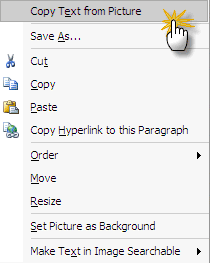
Onenote features an easy to use menu item that allows you to capture text directly from any picture on the screen, it’s not very powerful and Onenote should not be purchased for this feature, however if you have this software installed already for other purposes it’s handy.


JAWS 13


Most blind users will already have JAWS 13 for acces to their microsoft windows machines, if so there is an easy to use OCR function that will capture text from any thing on the screen.
to use this feature see this link under Convenient OCR.

SIMPLEOCR


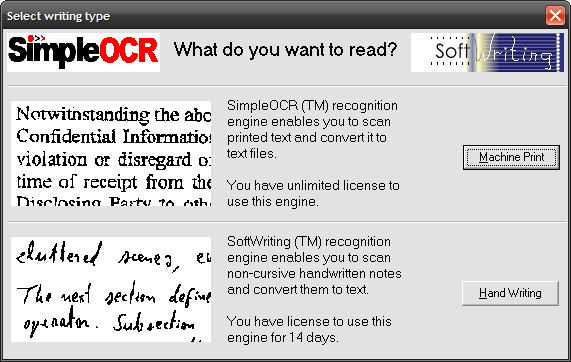
SimpleOCR is a great program for a student to have on their laptops, it’s quite simple and powerful, it features both a print and handwriting accessibility mode.


Ipad/Iphone OCR apps


with OCR apps the iPad/iPhone could potentially be very powerful handheld OCR tools. At this stage I have not been able to test these but a list  of available ipad/iphone apps is available here.


Tuesday, 11 June 2013

procedure for smartboard access for low vision students

A couple of years ago i developed a procedure to give my students smartboard access via the iPad. This means that students can sit anywhere in the class and have comfortable access to board demonstrations.  I had to develop a particular procedure that ensured that teachers were aware when the student was looking at their screen and a procedure that used software that was free/low cost and could be used with appropriate permissions.

I came up with a VNC procedure that is ready to be integrated into most school networks for free- across any operating system- please let me know if you have trouble setting this up as over the last couple of years i've done a lot of problem solving and i'm happy to amend the procedure depending on the issues other people come across when using this procedure.

I'm happy to report that this procedure was a little complex at first but now takes me about 5 minutes to set up a computer and iPad, and it offers our students that still use their vision to access content unprecedented access to the board.

Id be interested in any comments, questions or suggestions about this procedure! Happy teaching!

https://docs.google.com/file/d/1TwtdQ8Ck20bWXellKR3gkMYDIa3JpZ5ZIpnpc__Qr8KT0K5Rsa4xUvNLkM5q/edit?usp=sharing